

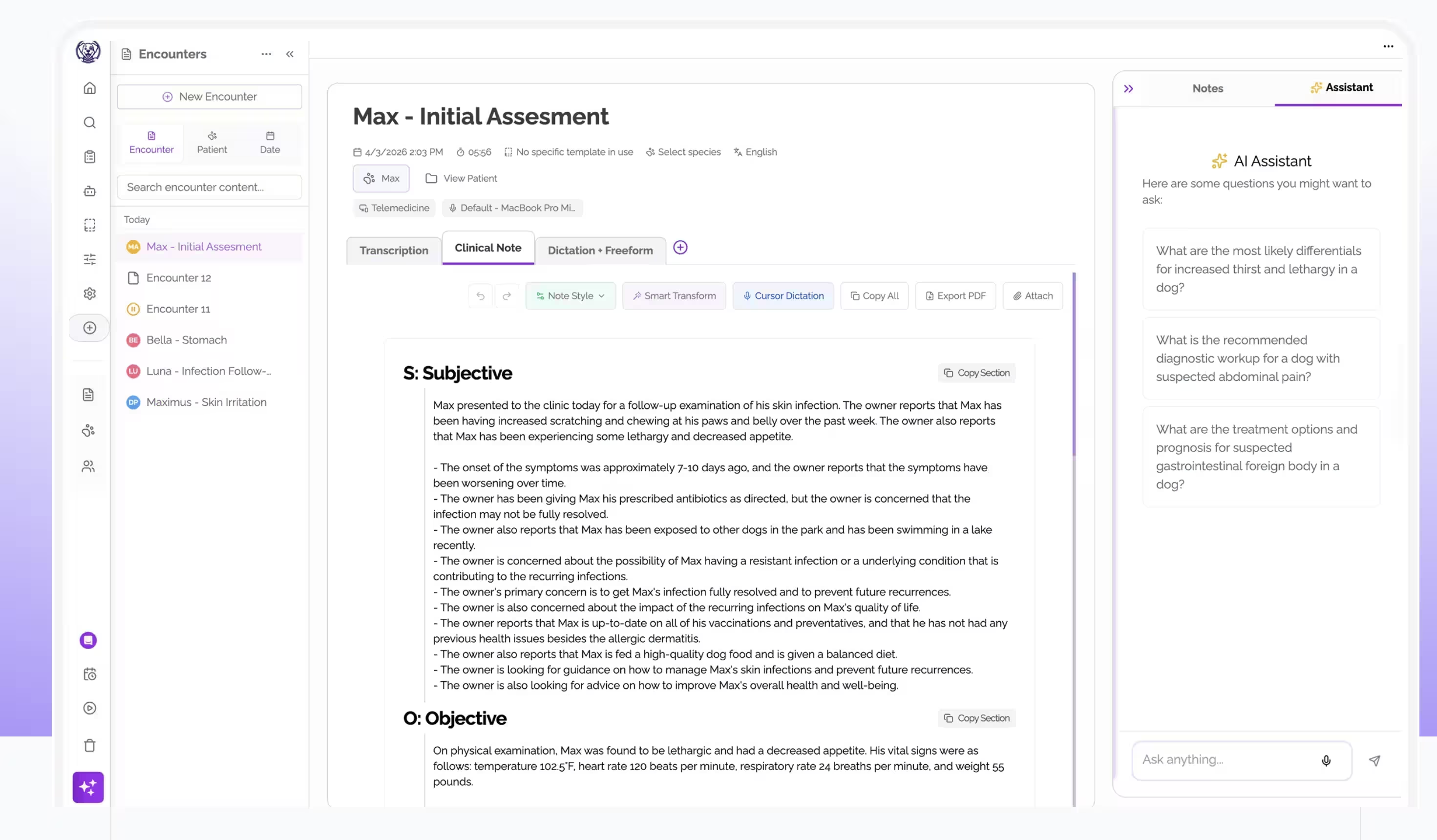
Getting Started with Maxly: Your Quick Guide to AI Scribing
Welcome to Maxly! We're excited to help you streamline your veterinary documentation and reclaim valuable time. Getting started with our AI Scribe is designed to be simple and intuitive. Follow these steps to integrate Maxly into your workflow.
Step 1: Sign Up & Account Setup
- Visit Maxly: Go to our website (maxly.vet) and choose the "Try Maxly FREE" or "Sign Up" option.
- Create Your Account: Follow the prompts to enter your details and create your secure login credentials.
- Initial Configuration: You may be guided through some basic setup questions about your specialty or practice management system to tailor the experience.
Step 2: Download & Install (If Applicable)
Maxly primarily operates as a web application, accessible through your browser. However, depending on the specific workflow or features, a desktop or mobile companion app might be available or recommended.
- Web Access: Simply log in through your web browser on your computer or tablet. No installation is usually required for core functionality.
- Check for Apps: Visit our Help Center or check your account dashboard for links to any optional companion applications if needed for specific features like mobile recording.
Step 3: Configure Your Microphone
Accurate audio capture is key.
- System Settings: Ensure your computer's operating system recognizes your preferred microphone (internal, external, headset).
- Maxly Settings: Within the Maxly application settings, select the correct microphone input device.
- Test Your Mic: Use any available testing features to confirm the microphone is working correctly.
Step 4: Your First Recording
Ready to capture your first encounter?
- Log In: Access your Maxly account.
- Start Recording: Before the patient encounter begins, click the "Record" or "Start Session" button within the Maxly interface.
- Conduct Consultation: Focus on your patient and their owner. Speak clearly, and ensure the microphone is positioned optimally to capture the conversation.
- Stop Recording: Once the consultation is complete, click the "Stop" button.
Step 5: Review & Edit Your Note
Maxly's AI will process the audio shortly after the recording stops.
- Access Note: Navigate to your dashboard or session list to find the newly generated note.
- Review: Read through the transcribed and structured note. Compare it against your recollection of the encounter.
- Edit (If Needed): Use the intuitive editor to make any necessary corrections, additions, or clarifications. The AI learns from your edits!
- Approve: Once satisfied, approve the note.
Step 6: Practice Management Integration (Optional but Recommended)
- Connect Your System: Follow the instructions in Maxly settings to securely connect to your practice's management system. This usually involves an authentication step.
- Sync Notes: After approving a note, use the "Send to PMS" or "Sync" option to transfer the documentation directly into the patient's chart.
Need Help?
We're here to support you!
- Explore the Help Center: Find detailed guides and FAQs at intercom.help/maxly-ai-vet/en.
- Watch Tutorials: Look for video guides within the platform or Help Center.
- Contact Support: Reach out to our Support Team for personalized assistance.
You're now ready to experience the efficiency of Maxly AI Scribe. Enjoy less documentation and more time focused on care!