

Your First Steps with Maxly AI Scribe
Welcome to Maxly! We're thrilled to help you simplify your veterinary documentation process. This guide covers the essential steps to get you up and running with our AI Scribe quickly and efficiently.
1. Account Setup & Login
Getting your account ready is the first step. You should have received an invitation link or instructions from your administrator. Follow these to create your password and log in to the Maxly platform via our secure web portal or desktop application.
Need help? Contact your administrator or reach out to our support team.
2. Initial Configuration
Depending on your clinic's workflow, there might be some initial configuration steps. This could involve:
- Connecting your practice management system: Follow the prompts to securely link Maxly to your existing veterinary practice management system for seamless note integration.
- Setting Preferences: Customize recording settings, notification preferences, and template choices to match your specific needs.
- Microphone Check: Ensure your microphone is properly configured and tested for optimal audio capture during patient encounters.
Our platform will guide you through these steps, but detailed guides are also available in our Help Center.
3. Your First Recording
Ready to document your first encounter?
- Start Recording: Simply initiate the recording within the Maxly application before starting your patient consultation.
- Natural Conversation: Speak naturally with the pet owner. Our AI is designed to understand veterinary clinical dialogue.
- Stop Recording: End the recording once the relevant part of the encounter is complete.
4. Reviewing and Editing Notes
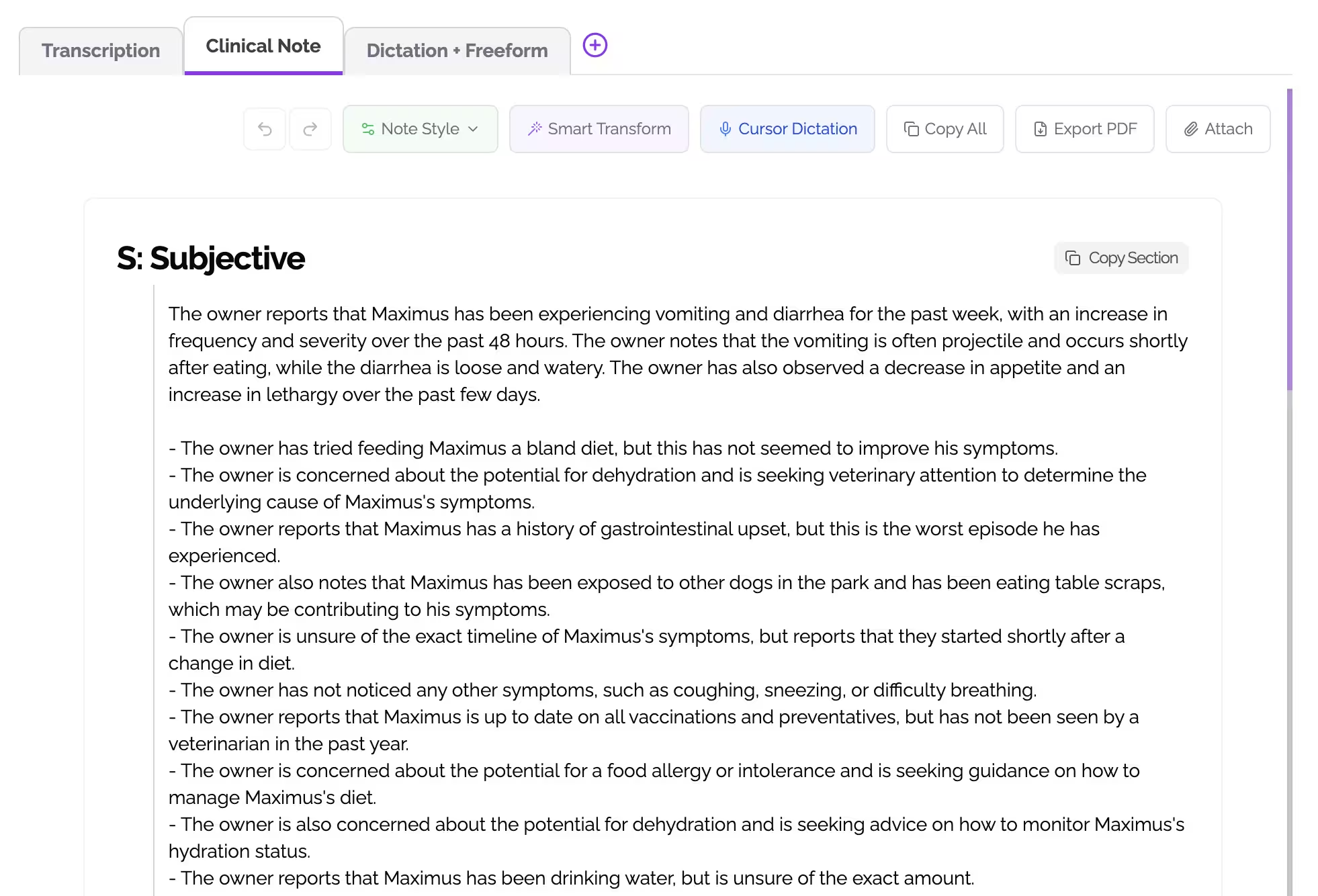
Moments after the recording stops, Maxly's AI will generate a structured clinical note.
- Review: Check the generated note for accuracy and completeness.
- Edit (if needed): Make any necessary adjustments directly within the Maxly interface. Our AI learns from your edits over time.
- Approve & Sync: Once satisfied, approve the note. It will then be automatically synced to the patient's chart in your connected practice management system.
5. Exploring Features
Take some time to explore other features:
- Templates: Utilize or customize templates for common visit types.
- Macros/Shortcuts: Create shortcuts for frequently used phrases or instructions.
- Team Collaboration: (If applicable) Understand how to share notes or collaborate with colleagues within the platform.
Need More Help?
This guide covers the basics. For more detailed information, troubleshooting, and advanced features, please explore the full Maxly Help Center or contact our dedicated support team.
We're confident that Maxly AI Scribe will significantly reduce your documentation burden, allowing you to focus more on animal care. Happy documenting!